Category: Articles

Articles on various topics

  • New Gmail with English

    Okay there has been talk about a new Gmail version lately. I was kinda bummed when i didnt get to colorcode my labels like everybody else.
    However the word is not all grey since i found a way to get the new version out quickly; Switch to english languaged Gmail!

    1. Open your settings
    2. Change the language of Gmail to ‘English US’
    3. Colored labels !!

    Worked fine for me. Apparently the ‘new’ version has a link to the older version on the top right, as well as colored labels. Look for the colors closely on the right side of the labels box.
    Source: Lifehacker – What version of Gmail are you using ?ร‚ย 

  • Disable windows update nag screen

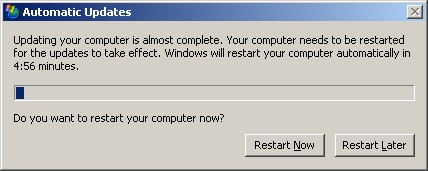
    Today i saw a great tip on one of my favorite sites, LifeHacker. How to disable the annoying “restart your computer” nag screen windows update pops up after installing updates. I have been extremely annoyed about it alot of times, since i simply had more stuff to do rather than reboot.

    update nag screen
    So thanks to Jack (a reader at LH) we can disable that service:

    To stop this service, open [Command Prompt] (Start>Run>cmd>Enter) and type the following command sc stop wuauserv. This will not prevent Automatic Updates from starting at the next boot. So don’t worry, you’ll keep getting Windows updates. Just don’t forget to restart eventually.

    Amazing tip! Thanks Jack!

  • Dustpuppy gets eyes! Making orbicam run on ubuntu

    My laptop, affectionately called ‘dustpuppy’, is of course running Ubuntu Linux 7.04. After my basic install i had only a few things that didn’t work. The primary non-functional issues was the integrated webcam and the flash card reader. And now webcam works.

    How to set it up. Well for this i mainly followed a tutorial available on the Ubuntu Forums by brazzmonkey. However i recreated it for personal use here. Im using an Acer Travelmate 4280 laptop, with 1.3 megapixel Orbicam integrated.

    First we need to make sure that the camera is detected

    lsusb

    and you should be getting something like this

    Bus 005 Device 002: ID 046d:0896 Logitech, Inc.

    Now we need to install some prerequisites to make able to build the drivers for the webcam

    sudo apt-get install build-essential linux-headers-$(uname -r)

    Now for getting the drivers. The main download page is here: http://mxhaard.free.fr/download.html
    At the time of writing the newest driver is gspcav1-20070508.tar.gz
    Lets unpack them

    tar zxvf gspcav1-20070508.tar.gz

    Compile and install the drivers

    cd gspcav1-20070508/
    make
    sudo make install

    Now we have the drivers compiled and installed. A personal note. On this laptop i moved the drivers to /opt/gspcav1-20070508/ before compiling, and installing. Just because i like to keep my own personal order in the folders.

    Next we need to tune the module before loading. I will explain why later, but its needed for colors to be shown correctly.

    sudo gedit /etc/modprobe.d/options

    Add this to the end of the file to make sure colors are displayed correctly. Unless of course you are happy looking like a smurf ๐Ÿ˜‰

    options gspca force_rgb=0

    In the original tutorial the value was supposed to be 1, but for my laptop setting it to 0 seems to be correct value. Now save the file and close gedit.

    Now we are ready to load the module, so we can check out webcam is working.

    sudo modprobe gspca

    Now check that the device node exists.

    ls /dev/video*

    The result should be something like mine here:

    /dev/video0

    If you did get a similar result the webcam is now ready for testing. First we need to install a webcam application to use for testing. Camorama is perfect for this. If you dont already have it installed just use this command

    sudo apt-get install camorama

    And now we can start the application with

    camorama

    But whats this ?! You seem blue in the face.. have no fear my blue friend. In Camorama under ‘view’ select ‘show effects’.Now the effects pane is added to the dialog. Right click and ‘add filter’ and select the ‘color correction filter’ Now you should instantly become more humanised colors.

    The trick here is that its only camorama, so far that i know of, that reverses the colors. So using the color correction filter it shows correctly. Other applications don’t need this. So fire up Ekiga softphone to further test out your webcam and in general just have fun ๐Ÿ˜€

    Hope this helped some people, especially users with this specific laptop. Questions, or comments can be left in comments section ๐Ÿ˜€

    source: ACER Orbicam integrated webcams now supported by GSPCA

    Image taken with the webcam:

    gizmo webcam

  • Invalid google!

    The other day i was surfing around, wasting time. The net is a great way to waste time, and my question is whom to see about getting that time back. No wait, thats not the question i was going for. Why doesnt google validate according to the w3c standards ?!

    The extremely simply google frontpage does not validate according to the w3c standards. Why ? I have no answer for this. But my curiosity got peaked and i started googling (invalid results ? ๐Ÿ˜‰ ) for some answers.
    It would seem that google once DID validate, according to google employee, Mihai Parparita. In his personal blog he writes this:

    There’s a perception that Google doesn’t care about valid HTML, since bandwidth costs trump correctness. While that thinking has merit for high traffic sites, there’s more leeway on our smaller properties. Specifically, I was happy to discover that Google Video validates. And it’s not just the relatively simple front page, search results validate too.

    Abit the post is nearing 2 years in age, i still find it curious that the google pages once did follow standards, but no longer. Did i simply make a mistake when checking for validity ? Well talking apart some more results on the topic i found the following post on the same topic:

    The myth that Google is using invalid markup to save bandwidth is clearly just a myth.

    Hmm invalid markup to save bandwith. Well seems resonable enough. Fewer characters = less bandwith. And there are plenty of characters you can save away like quotes. Another link has a story on exactly why googles frontpage uses non-validated code. Here is what Googleโ€™s Matt Cutts once argued:

    Googleโ€™s home page doesnโ€™t validate and thatโ€™s mostly by design to save precious bytes. Will the world end because Google doesnโ€™t put quotes around color attributes? No, and it makes the page load faster.

    So the invalid page is supposed to shave previous characters off the page, and make it load faster. Seems really really resonable with google being one of the most popular search engines around, that optimising the site for lightning load times is extremely important. But this story isnt so simple. Because Roger Johansson ((A Swedish web professional specialising in web standards, accessibility, and usability)) recreated the frontpage using standards and came up with this strange result;

    …the result is a valid HTML 4.01 Strict file that is 3 902 bytes large. Googleโ€™s invalid kinda-HTML 2.something very-loose is 4 944 bytes. The valid and strict version is 1 042 bytes smaller. Thatโ€™s 21 percent savings on bandwidth costs.

    So why would google still be using a non-standard frontpage and subsequent pages for that matter. I found no more recent material on this matter. But perhaps somebody knows why. Im still curious to know, especially since a company the size of google i would expect they could spare at least one employee to make the pages valid code. As shows coding according to standards doesnt increase the size of the page, and thus should reduce bandwith usage.

    More on the topic if i should find out more.. feel free to leave comments and enlighten the subject. I stress that im merely posing an open question here, so no flaming from any side please ! Play nice ๐Ÿ˜‰

  • gDesklets – widgets for linux

    Okay this time i want to share how to install, setup and use gDesklets for linux. More specifically as i always do using Ubuntu Linux. Its a small easy guide and there isn’t a lot too it, so lets get started:

    Installation

    First we, of course, need to get gDesklets installed. Right now i am writing from Ubuntu Feisty Fawn Herd 5, and gDesklets was already installed. But should you be using an earlier version of Ubuntu just open up a terminal (applications -> accessories -> terminal) and type in the following command:

    sudo apt-get install gdesklets

    It should prompt for your admin password, and after you enter it gDesklets will install. Expected more ? Well thats it ๐Ÿ˜‰

    Configuration

    There is not alot to configure. We want gDesklets to startup everytime with gnome. So under System -> Preferences -> Session we will find a way to make gDesklets startup automatically. Under ‘Startup Programs’ we click ‘new’ and both under name, and command enter ‘gdesklets’.
    Now gDesklets will start automatically with you gnome. Since we are not a big fan of restarting just to see what we just installed we want to boot up the gDesklets deamon right away. Open up the terminal again and type:

    gdesklets &

    Now the gdesklets icon should pop up in your system tray in the upper right hand corner.

    desklets tray icon

    Now you can right-click the icon and either select manage desklets or configuration. There is not a big deal to configure, so we are going to jump straight to ‘manage desklets’.

    Managing desklets

    In the manage desklets dialog you can select various desklets to add to your desktop. Each desklet can be individually configured by right clicking it. Just to get you started we will add one of my favorite desklets, a simple countdown timer.

    gDesklets main windows

    Under the category ‘Misc/Utilities’ you will find ‘Countdown2’. simply double-click it, and move your cursor to the desktop. You will see the desklet following your cursor, and you can click again to drop it.

    Now you have your first desklet running, and it will start automatically upon next reboot.

    Finally a note about my own personal experience with desklets. They are awesome ๐Ÿ˜‰ But not without grief. Some desklets wont work, some will only work with limited functionality ect. But even with the most basic desklets working they are still nice to have lying around. I especially use my countdown a lot for knowing how long too upcoming deadlines.

    Enjoy the world of linux with desklets ๐Ÿ˜€

  • VPN and Network Manager in Ubuntu

    Today i want to share my little knowledge about vpn connections using NetworkManager.

    Network Manager in case you dont already know is an amazing piece of software for your linux distro allowing easy hazzle free networking when switching to wireless network environments.
    An example would be the windows wireless list were its possible to see all the wireless networks found and click to access a specific one. Network Manager works much the same way.

    However one functionality that i know some people use, amongst others myself, is VPN connection. Its available for Network Manager through a plug in, and i can say it works great. Though there are a few quirks that i have discovered through my use of it, and it can also be a little hard to get a hold of ๐Ÿ™ Why i dont know, so to help out i have provided a download link at the end of this article.

    First off to enable the use of the VPN plugin install VPNC from synaptic. You can also use the terminal and install using this command:

    sudo apt-get install vpnc

    If you for some reason forget to install this you will risk Network Manager simply crashing / disappearing on you when you try to connect to a VPN network. I had this bug recently and didn’t realize it until later when i installed vpnc and it worked. I haven’t investigated whether or not this is a known bug in Network Manager yet but in any case a valid point to know.

    So now we have installed the necessary applications for the vpn plugin to function correctly. Download the .deb file provided at the end of the article and simply double click to install it. After install you might need to reboot network manager to get your vpn plugin showing up. Either reboot the old fashioned way, restart gnome or open the terminal and do the following:

    sudo killall NetworkManager

    sudo NetworkManager

    Now when you left-click your network manager icon you should get a menu item called “VPN Connections” at the bottom. Now all thats left is simply to add your vpn network details and you are ready to connect.
    I have personally found this to work easily and well on my university network, but different vpn networks might not be that easy. But most of this should be pretty much straight forward.

    I hope this helped some people and especially the need to have “vpnc” installed before trying to establish a vpn connection could prove useful. So go forth and connect to vpn networks all over the world my penguins!
    Class dismissed!

    Download Network Manager VPN plugin: (.deb) (.rar)
    PS: The version of Network Manager im currently using with this plugin is 0.6.3, so other versions might experience trouble.

  • How To keep that in-box organized !

    This is the follow-up in the organizing your everyday life series. How to keep control of that pesky in-box filling up with e-mails.

    Get a spamfilter. Getting a spam filter, either by installing thirdparty filtering software, or using an e-mail client with a built in filter is a lifesaver. Most filters greatly reduce the number of spams you have to manually have to move to the trash folder. Most filters also allow you to “teach” it about the particulars of spam flowing your way. So over time the amount of spam should be greatly reduced.

    How does this help you.. well even if you are proficient in spotting spam mails it still takes time to find and remove them all. So even though it doesnt take a lot of time in itself its gonna amount to a big amount of wasted time just doing junk mail sorting. Why not let your computer do most of the work.

    I reccomend using Thunderbird for your e-mail client on windows, as personally i find the spam filter great! I get around 1-2 spam mails pr day at the most. Where it automatically sort away a large part of them. So far i have never had a false positive (legit mail, caught in spam filter).

    Make folders. Making folders outside the in-box is another great, but overlooked tip. Most people keep all their e-mail in the in-box. Why bother moving it they might think. The reasons for actually sorting are as follows:

    • Only new e-mails in the in-box
    • Easier to find old messages according to folders
    • pseudo to do list
    • archiving

    When you make your in-box exactly that you will only have new, unanswered mails in there. What i do is make a general archive folder for stuff i want to keep but that doesn’t have a specific category. Then i make several other folders for various topics and subjects i feel Im getting. Examples are a ‘jokes’, ‘important’, ‘client work’, ‘university’ and ‘work’.

    This allows me to have a virtual to do list in my in-box. I have only unanswered mails in the in-box and when I am done either replying or processing whatever a mail from the in-box contains i will move it accordingly (or simply delete it). This keeps the in-box clean and only filled with unprocessed mails.
    The final point was to archive mails, which generally allows you to faster locate mail according to folder topics. Example if i want to find the newest funny joke image my father sent me, i simply have to look in the ‘jokes’ folder. Furthermore i can keep my university stuff in a single folder.

    What i personally think makes people overuse the in-box is simply that they don’t believe they actually have any use for folders. Or that they overuse them when trying it out and make too many folders for themselves. Don’t make folders according to what people send to you, but rather instead of various topics the mails might fall under.

    Generalize the folders. ‘Archiving’ might be a perfect folder for simply keeping mails you don’t yet know what to do with. Perhaps a folder named ‘2005’ might be a great subfolder here. Making subfolders can make your e-mail archive even more organized should you ever need to walk through them.

    Finally don’t underestimate the search function of your mail client. Personally i try to keep my mails organized so i don’t have to use it, but if you frequently have to search for your mail using some folders might be a good idea, or perhaps rethinking the naming scheme of them ๐Ÿ˜€

    Hope this helps keep those in-boxes clean and a little more organized! ๐Ÿ˜€

  • Power up the terminal with Aliases !

    A little quick trick on how to add some nifty aliases for your terminal. What is an alias exactly. Well it’s another name for a specific command. A common alias e.g. could be to be able to type ‘dir’ (windows/DOS style) to list the directory content instead of ‘ls’. Then you make an alias saying that the ‘dir’ command should be the same as typing the ‘ls’ command.

    Now Ubuntu Linux comes with some of the common aliases already in your .bashrc file, but pr. default they are commented out. We simply need to uncomment them and also add our own extra ones if we want.

    gedit .bashrc

    Towards the bottom of the tile you should see a line like this:

    # some more ls aliases

    Uncomment the section below this line, by removing the ‘#’ at the beginning of each line. You should now be able to use these aliases. If you wish to add extra aliases just follow the same syntax as the ones already there and you should be able to quickly add your own.

    Personally i like to add an alias for the ‘cd ..’ command which allows me to also use ‘cd..’ without the space between ‘cd’ and ‘..’. An alias like that would like like this:

    alias cd..=’cd ..’

    There you have it.. how to add your own aliases to the terminal. If you don’t want to close the terminal for them to take effect, simply use the following command from your home directory to reload the .bashrc file.

    source .bashrc

    Enjoy the wonderful world of aliases ๐Ÿ˜‰

  • Use your own scripts in Ubuntu

    Sometimes tedious tasks can be simplified by writing a simple bash script to perform them. Now i will not go into details on how to write scripts in Bash, but instead show how you can easily make your scripts available from anywhere in your terminal.

    First off open up a terminal, and in your home directory create a directory named ‘scripts’. As you might have guessed all your scripts will be placed here. For each script file you place here do the following:

    chmod +x scriptname.sh

    This will ensure that your script is executable, so no more need to type ‘sh’ before running the script. So now you have a directory of executable script, but so far they can only be accessed from either the directory itself, or by typing the path to the script. So we edit our .bashrc file a little. This file is located in your home directory.

    gedit .bashrc

    Scroll down to the bottom of the file, and add the following line

    export PATH=$PATH:/home/USERNAME/scripts/

    Of course replace USERNAME with your own username/homedirectory. Now reload the file with

    source .bashrc

    And you are all set. Any shell script you now place in scripts can be executed from anywhere on the system. The only requirement is to chmod +x on the file first ๐Ÿ˜€

  • Take control of your CPU in Ubuntu!

    I recently was investigating for no apparent reason if my cpu (core 2 duo) was running at full speed. Also looking for ways to manage speeds, and fan control in Ubuntu. What i found was the following. You can add an applet to your panel that shows the CPU temperature.

    Right click on the panel, and choose ‘add to panel’. Choose the CPU Frequency Scaling Monitor.

    But how does this help me to control the speed ? It doesn’t, so off i go investigating. But before i did i noticed that instead of showing 1.6 GHz i was getting simply 1. Also i had to add 2 applets to monitor each core.
    So after some digging i ran the following command from a terminal:

    cat /sys/devices/system/cpu/cpu0/cpufreq/scaling_available_frequencies

    What you get from this is a list of the possible frequencies your CPU will run at. The steps are predetermined by the manufacturer. Next is to find a list of the possible managing (called governors) of the speed.

    cat /sys/devices/system/cpu/cpu0/cpufreq/scaling_available_governors

    This provides me with a list of the Governors available for my cpu. Normally its using the ‘Ondemand’ which allows the higher cpu usage if needed, but else throttles down speeds in exchange for longer battery life and temperature.

    Now my goal was to be able to mange them myself also, so i found after some searching that the CPU monitor applet would allow this, but pr default is set not to allow the user to change such setting. It makes sense also because why would be average user (non-root) need to control cpu settings. Also changing it would allow ANY user on the system to change the speeds. Since I’m only myself i don’t mind this. So off i go to reconfigure the applet, to allow speed changing:

    sudo dpkg-reconfigure gnome-applets

    This is gonna change the settings if you answer yes to the question regarding setting the suid of the cpufreq-selector executable. Now i can right click my cpu monitor applet and under preferences choose which kind of controls i want available. I choose to have both frequency, and governor available.
    Now a simple left click on the monitor allows me to change either the governor mode, or the frequency itself.

    Hope this helps people take back control of their cpu, or at least leave you the opportunity to do so ๐Ÿ˜€ Enjoy!